Tuesday, December 5, 2023

Detects Nails or Screws using AI Models

With power automate now you can build your own AI model's and you can use those models into Flows or power apps. 

You can build different AI models like extracting information from Shipping Receipts  or detect sentiment in text or Predict future outcomes from historic data or Detect custom objects in images. 

Here I am going to explain how to create AI model to detect custom objects (Nails or Screws ) in custom images. 

To create AI model you have to start from https://make.powerapps.com/

In Power apps you will find AI Models / AI hubs left side menu.. if it is not there then look into More options. 


Then from AI models select Images --> Detect custom objects in Images


Once you Click on Detect custom objects in Images, you will get option to create custom model.

Now Start creating custom model. 

1. Select one model domain from based on your requirement
      a. Common objects  - anything like Dorne, cats or animals, Car etc.
      b. Objects on retail shelves - Items on shelf like shampoo, soap, electronics etc. 
      c. Brand logos  - company logos 

For my model I used common objects

2. Then you need to list which objects you wan to detect in images. Based on number of objects you want to detect you need to provide number of images to train you AI model. 


3. Now you need to upload images for your object. 
     At least 15 images are required per object. If there are multiple objects in single image then image is counted for multiple objects. 
For better AI model try to load images with different agnel, light or by different object size. 

4. When you done with uploading images, you need to tag objects in images 

You can only draw square or rectangles to select objects. So try to select whole object in images and try to avoid other objects to be tagged. 

If there are multiple objects then upload only one objects images one time and tag them and repeat process for another object.. so that you will easily tag correct object. 

 
Once all tagging is done you are ready to train your AI model.

5. Train AI Model
  Based on images and objects in images, AI model will take time to train. 

Once AI model is trained you can see performance of AI model. Performance is provided based on data provided and how accurate model will detect object. 

6. Quick Test

Once AI model is trained you can test your Model 

From Model home page, you can do quick test for your Model.


7. Re-train or Editing model. 
If your model is not detecting object as expected you can re-train your AI model by providing additional images. 
sometimes if additional images are not good or not correctly tagged objects, retraining may not increase performance of AI model. 


Wednesday, November 18, 2020

MS Flow to update records in D365 CRM


Recently we had a requirement to add one new flag in Product entity. Once flag added, I need to update some of the products based on some criteria. But to update products either I need to open each product and update flag or need to find some another way. So, I thought of writing my first power automation flow.

This is just one-time update job, so I created manually trigger flow.

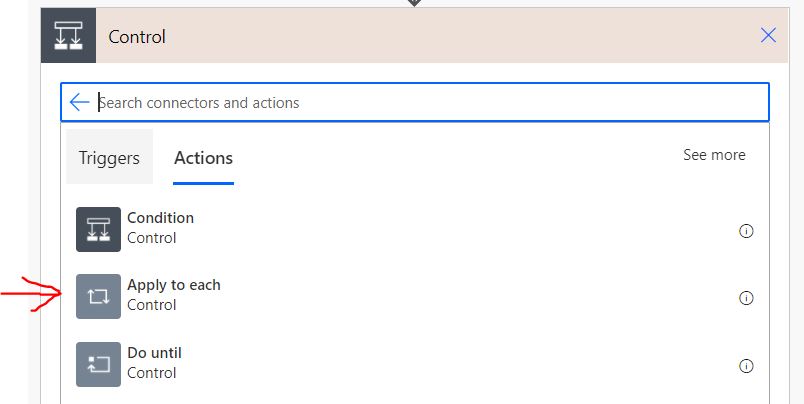
In this flow I used fetch xml query to pull products which I want to update and used for each (Apply to Each) loop to update product.

  •    Start creating flow from blank

·       In Manual trigger a flow, I used to Yes/No input for just confirmation about executing flow.


  •     So far, we are not connected to Common data service. To pull data from D365, you need to connect to D365 using common Data Service and choose environment.   Once Connected to D365, use List Records Action in Common Data Service.


    ·       For List Records Action you need to specify Entity name and there are different options to retrieve records. I used FetchXml.


    ·       Now there are many records and need to update one by one. When using workflow in D365 CRM we cannot update one-by one record in single workflow until we write some custom code. But now in power automation you can using basic loops like Apply to Each.


    ·       Apply to Each loop is a For Each loop.  Which will give you each item. Here we are pulling products and passing to Loop, so need to get each product. In Select an output from previous steps, select list value. Which is a single product value.


    ·       Now we need to work in Loop. Click add Action in Loop and use Common Data Service  à Update Record.

    ·       In Update Record action, use entity name as Product and then Item Id will be Product Unique Identifier. And then need to set attributes whose values need to be updated.


Complete flow will look like


Monday, October 12, 2020

Model Driven App - Script Error

 Recently during some development, I came across one strange error. One user was getting script error when trying to access connection entity form. 

On connection entity, I added some JavaScript code to filter connection from lookup to limit only for Users and Teams. 

JavaScript Code is working fine when I tried to debug issue. 

After doing some more debugging, I realized user is using different app and that app does not have access to Team entity. 

 Once added Team entity into App, error Fixed, and script worked as designed. 

When designing Model Driven App for consider 

 1. When using JavaScript code to filter lookups to specific entity, specially customer lookup, connection entity from / to lookups, make sure entities used in filter are added in App. 

2. When using JavaScript code to redirect to specific form based on value change / option set change, make sure all forms added in App. 

3.  If entity is using Quick create form, then make sure quick create forms added in App otherwise default main form will be used to create record


Monday, February 13, 2017

Error : Too many entities enabled for auto created access teams.


Error Log: 

Unhandled Exception: System.ServiceModel.FaultException`1[[Microsoft.Xrm.Sdk.OrganizationServiceFault, Microsoft.Xrm.Sdk, Version=7.0.0.0, Culture=neutral, PublicKeyToken=31bf3856ad364e35]]: Too many entities enabled for auto created access teams.Detail:
<OrganizationServiceFault xmlns:i="http://www.w3.org/2001/XMLSchema-instance" xmlns="http://schemas.microsoft.com/xrm/2011/Contracts">
  <ErrorCode>-2147187918</ErrorCode>
  <ErrorDetails xmlns:d2p1="http://schemas.datacontract.org/2004/07/System.Collections.Generic" />
  <Message>Too many entities enabled for auto created access teams.</Message>
  <Timestamp>2017-02-13T21:33:05.6114604Z</Timestamp>
  <InnerFault i:nil="true" />
  <TraceText i:nil="true" />
</OrganizationServiceFault>


Solution: 
In MS CRM by default you can enable for auto create access teams to Maximum 5 entities. Once this limit reaches you will see above error message.
This limit is specified in MaxEntitiesEnabledForAutoCreatedAccessTeams deployment setting.
You need to update this deployment setting if you have more than 5 entities.

To update you can use Powershell

Add-PSSnapin Microsoft.Crm.PowerShell
$Cred = Get-Credential
$CrmOrgs=Get-CrmOrganizations -serverUrl https://< CRM_Server_Host >
 -Credential $Cred
Get-CrmSetting -SettingType TeamSettings
$set =Get-CrmSetting -SettingType TeamSettings
$set.MaxEntitiesEnabledForAutoCreatedAccessTeams = “6”
Set-CrmSetting -Setting $set
 
Useful links for PowerShell:
https://technet.microsoft.com/en-us/library/dn905215.aspx#BKMK_changemon
https://technet.microsoft.com/en-us/library/dn531194.aspx
https://msdn.microsoft.com/en-us/library/microsoft.xrm.sdk.deployment.teamsettings.maxentitiesenabledforautocreatedaccessteams(v=crm.7).aspx 

To Update using SQL
Login to SQL server
Run following query on MSCRM_CONFIG database
select * from DeploymentProperties where ColumnName ='MaxEntitiesEnabledForAutoCreatedAccessTeams'

To Update MaxEntitiesEnabledForAutoCreatedAccessTeams  setting run
update DeploymentProperties set IntColumn = 6 where ColumnName ='MaxEntitiesEnabledForAutoCreatedAccessTeams'

Verify your setting is changed or not using select query.
Now you can able to enable 6th entity for auto create access team. 

Tuesday, February 7, 2017

Add custom portal into online CRM

To add custom portal into online CRM

1.  Go to Admin portal, either from dynamics CRM or directly into Admin portal.


2. Then go to Admin Centers and click on Dynamics 365, as shown below

3. Dynamics 365 Administration Center will be opened in new window. 


4. Click on Applications tab in Administration Center.

5. Select Portal Add-On and click on Manage, new window will be opened to configure portal

6.  Configure your portal, by entering name, portal type (Production / Trail), portal URL. 

7. Then select Dynamics 365 instance

8. Once Dynamic 365 instance selected, you need to select portal language, portal administrator  

When selecting portal administrator 
  •  Portal Administrator must be CRM user with System Administrator role.
  • User added as contact in CRM with Web role "Administrator" 
  • Login to the portal using "Sign in with an external account" option with user CRM credentials. 
9. Then select portal Audience and how portal deployed. 


Portal audience once set for portal cannot be changed later from UI. Portal choices are tailored based on the selection of the audience.

For Partner / Employee audiences, user license required for internal users (customer employees, contactors, agents) dependent on entities exposed.

Depending on audience, we will get different options for portal to be deployed. 

10. Submit your request.

11. After submit and accept page, provisioning begins. You will see following screen


12. Once you accept, portal creation request will be submitted.

 It will take around 30 minutes to complete. After provisioning package installation begins.


13.  Once package installation completed you will see portal details, and you are ready to configure your portal. 


 14. In your CRM instance you will see one area for portal, you can manage your custom portal from there. 


Monday, February 6, 2017

Show CRM entity form to particular Business unit users only

In MS CRM we can enable security role to custom forms, and only selected role users can view that form. When selecting role, all Roles are shown form ROOT business unit, there is no option to get security role from child business units.

In some cases if you want to show custom entity form only for particular business unit users regardless of their role, then need to write custom JavaScript code.

Add following function for entity form, which want to show based on business unit, if users business unit is not allowing to view form, then user will be redirected to other form.

var accountScript = {
    showFormBasedOnBusinessUnit: function () {
        var userId = Xrm.Page.context.getUserId();
        userId = userId.replace("{", "").replace("}", "");
        var req = new XMLHttpRequest();
        req.open("GET", Xrm.Page.context.getClientUrl() + "/api/data/v8.2/systemusers(" + userId + ")?$select=_businessunitid_value", false);
        req.setRequestHeader("OData-MaxVersion", "4.0");
        req.setRequestHeader("OData-Version", "4.0");
        req.setRequestHeader("Accept", "application/json");
        req.setRequestHeader("Content-Type", "application/json; charset=utf-8");
        req.setRequestHeader("Prefer", "odata.include-annotations=\"*\"");
        req.onreadystatechange = function () {
            if (this.readyState === 4) {
                req.onreadystatechange = null;
                if (this.status === 200) {
                    var result = JSON.parse(this.response);
                    var businessunitid = result["_businessunitid_value"];
                    var businessunitidname = result["_businessunitid_value@OData.Community.Display.V1.FormattedValue"];
                   
                    if (businessunitidname != "Finance") {
                        var forms = Xrm.Page.ui.formSelector.items.get();
                        for (var i in forms) {
                            var formname = forms[i].getLabel();
                            if (formname == "Information") {
                                forms[i].navigate();
                                break;
                            }
                        }
                    }

                } else {
                    Xrm.Utility.alertDialog(this.statusText);
                }
            }
        };
        req.send();
    }

};


Tuesday, November 1, 2016

Use FetchXML to Retrieve Data from MS CRM 2016 using Web API

With Web API in MS CRM, we are retrieve data using FetchXML.
Easy way to construct FetchXML queries are using advanced find in CRM, you can create query in advanced find, add columns, define sorting and then download FetchXML.
Once your FetchXML is ready, you can use this FetchXML in web API to retrieve data from CRM.
Here is sample code for how to execute FetXML and get values from FetchXML result set

ExecuteFetchXML: function () {      
        var accountFetchXML = ['< fetch version="1.0" output-format="xml-platform" mapping="logical" distinct="false">' +
            '< entity name="account">' +
            '< attribute name="name" />' +
            '< attribute name="accountid" />' +
            '< attribute name="numberofemployees" />' +
            '< attribute name="processid" />' +
            '< attribute name="donotpostalmail" />' +
            '< attribute name="statuscode" />' +
            '< attribute name="statecode" />' +
            '< attribute name="telephone1" />' +
            '< attribute name="ownerid" />' +
            '< attribute name="description" />' +
            '< attribute name="primarycontactid" />' +
            '< attribute name="address1_longitude" />' +
            '< attribute name="exchangerate" />' +
            '< attribute name="createdon" />' +
            '< attribute name="openrevenue" />' +
            '< attribute name="industrycode" />' +
            '< attribute name="shippingmethodcode" />' +
            '< order attribute="name" descending="false" />' +
            '< filter type="and">' +
               '< condition attribute="industrycode" operator="not-null" />' +
            '</ filter>' +
            '< link-entity name="contact" from="contactid" to="primarycontactid" visible="false" link-type="outer" alias="prmContact">' +
               '< attribute name="telephone3" />' +
               '< attribute name="spousesname" />' +
               '< attribute name="ownerid" />' +
               '< attribute name="gendercode" />' +
               '< attribute name="description" />' +
               '< attribute name="createdby" />' +
               '< attribute name="address1_latitude" />' +
               '< attribute name="exchangerate" />' +
               '< attribute name="createdon" />' +
               '< attribute name="annualincome" />' +
             '</ link-entity>' +
           '</ entity>' +
         '</ fetch>'].join('');

        var encodedFetchXML = encodeURIComponent(accountFetchXML);

        var req = new XMLHttpRequest();
        req.open("GET", Xrm.Page.context.getClientUrl() + "/api/data/v8.0/accounts?fetchXml=" + encodedFetchXML, true);
        req.setRequestHeader("OData-MaxVersion", "4.0");
        req.setRequestHeader("OData-Version", "4.0");
        req.setRequestHeader("Accept", "application/json");
        req.setRequestHeader("Prefer", "odata.include-annotations=\"OData.Community.Display.V1.FormattedValue\"");
        req.onreadystatechange = function () {
          if (this.readyState === 4) {
            req.onreadystatechange = null;
          if (this.status === 200) {

            var results = JSON.parse(this.response);
              for (var i = 0; i < results.value.length; i++) {                        
               var accountDetails = results.value[i];

               //Single Line Text
               var nameValue = accountDetails['name'];
               var telephone1Value = accountDetails['telephone1'];

               //UniqueIdentifier
               var accountidValue = accountDetails['accountid'];
               var processidValue = accountDetails['processid'];


               //Whole Number
               var numberofemployeesValue = accountDetails['numberofemployees'];

               //Two Option
               var donotpostalmailValue = accountDetails['donotpostalmail'];
               var donotpostalmailTextValue = accountDetails['donotpostalmail@OData.Community.Display.V1.FormattedValue'];

               //Status Reason
               var statuscodeValue = accountDetails['statuscode'];
               var statuscodeTextValue = accountDetails['statuscode@OData.Community.Display.V1.FormattedValue'];

               //Status
               var statecodeValue = accountDetails['statecode']; //Status
               var statecodeTextValue = accountDetails['statecode@OData.Community.Display.V1.FormattedValue'];

               //Owner
               var owneridValue = accountDetails['_ownerid_value'];
               var OwnerName = accountDetails["_ownerid_value@OData.Community.Display.V1.FormattedValue"]

               //Multiple Line
               var descriptionValue = accountDetails['description'];

               //Lookup
               var primarycontactidValue= accountDetails['_primarycontactid_value'];
               var primarycontactidName = accountDetails['_primarycontactid_value@OData.Community.Display.V1.FormattedValue'];

                  //Floating Point Number
                  var address1_longitudeValue= accountDetails['address1_longitude'];

                  //Decimal
                  var exchangerateValue = accountDetails['exchangerate'];

                  //Date Time
                  var createdonValue = accountDetails['createdon'];

                  //Currency
                  var openrevenueValue = accountDetails['openrevenue'];

                  //Option set
                  var industrycodeValue = accountDetails['industrycode'];
                  var industrycodeTextValue = accountDetails['industrycode@OData.Community.Display.V1.FormattedValue'];

                 //Contact - Linked entity data
                 //Single Line Text
                 var prmContact_telephone3Value = accountDetails['prmContact_x002e_telephone3'];
                 var prmContact_spousesnameValue = accountDetails['prmContact_x002e_spousesname'];

                 //Owner
                 var prmContact_owneridValue = accountDetails['prmContact_x002e_ownerid'];

                 //Option set
                 var prmContact_gendercodeValue = accountDetails['prmContact_x002e_gendercode'];
                 var prmContact_gendercodeTextValue = accountDetails['prmContact_x002e_gendercode@OData.Community.Display.V1.FormattedValue'];

                 //Multiple Line
                 var prmContact_descriptionValue = accountDetails['prmContact_x002e_description'];

                 //Lookup
                 var prmContact_createdbyValue = accountDetails['prmContact_x002e_createdby'];

                 //Floating Point Number
                 var prmContact_address1_latitudeValue = accountDetails['prmContact_x002e_address1_latitude'];

                 //Decimal
                 var prmContact_exchangerateValue = accountDetails['prmContact_x002e_exchangerate'];

                 //Date Time
                 var prmContact_createdonValue = accountDetails['prmContact_x002e_createdon'];

                 //Currency
                 var prmContact_annualincomeValue = accountDetails['prmContact_x002e_annualincome'];

                    }
                }
                else {
                    alert(this.statusText);
                }
            }
        };
        req.send();
    },

Remember when using fetchXML query in WEB API
1.      You need to URL encoded FetchXML
2.      With FetchXML you can apply paging by setting page and count attribute of the fetch element.